![Logo_BW-1.png]](https://customers.seatti.co/hs-fs/hubfs/Logo_BW-1.png?height=31&name=Logo_BW-1.png)
As a (company) admin, you have the ability to delete the bookings of others, ensuring that the desk is not blocked all the time, for instance, when someone is sick, on vacation or left the company and didn't delete future bookings themselves. You can also grant permission to others to be responsible for the booking management of specific areas.
This function is available to in the Seatti Professional plan.
Who can delete bookings made by others?
As a company admin, you automatically receive the permission assigned in role-based permissions, allowing you to delete bookings. In your admin menu, you will then see the option "Booking Management."
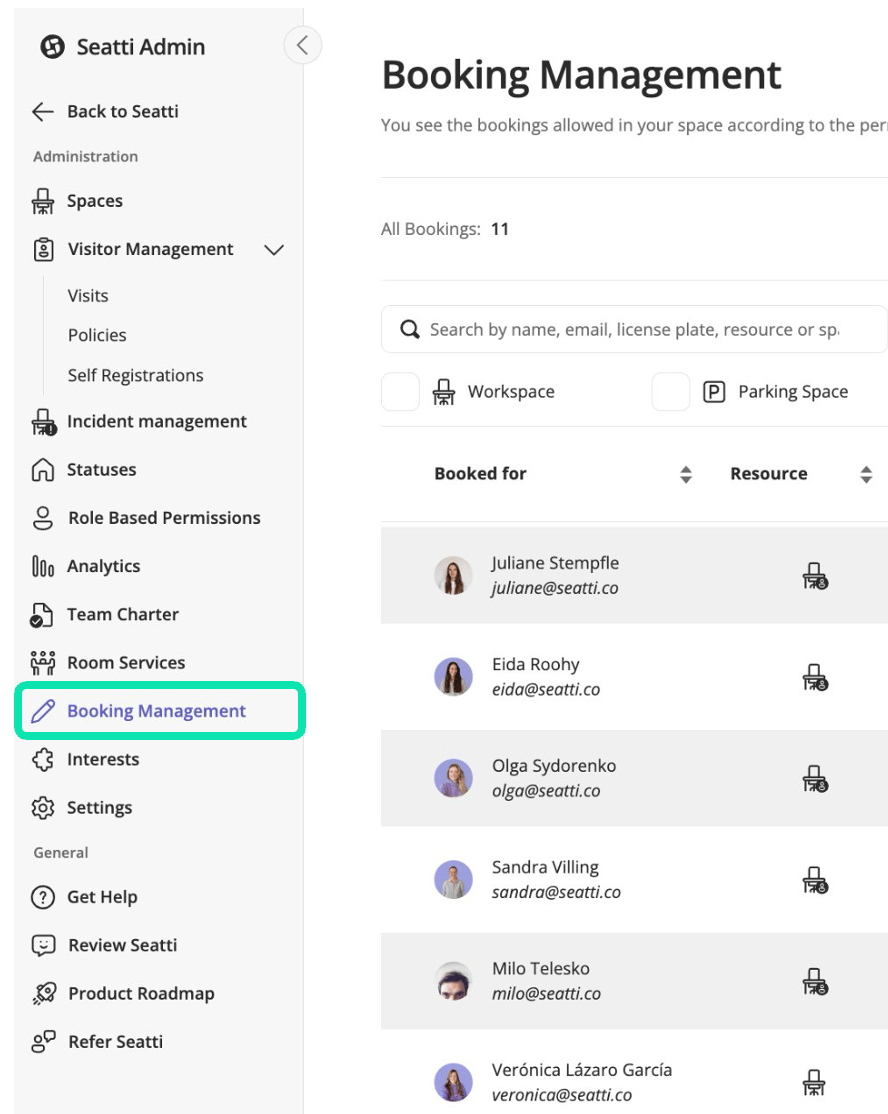
Permission for Booking Management
If you want to give someone the ability to delete bookings for their respective area, you can assign this permission to an admin group. In the Company Admin Group, you can see that the "Booking Management" permission has been added. You can add this to an admin group just like in this article on role-based permissions. This will then display the Booking Management menu for these individuals.
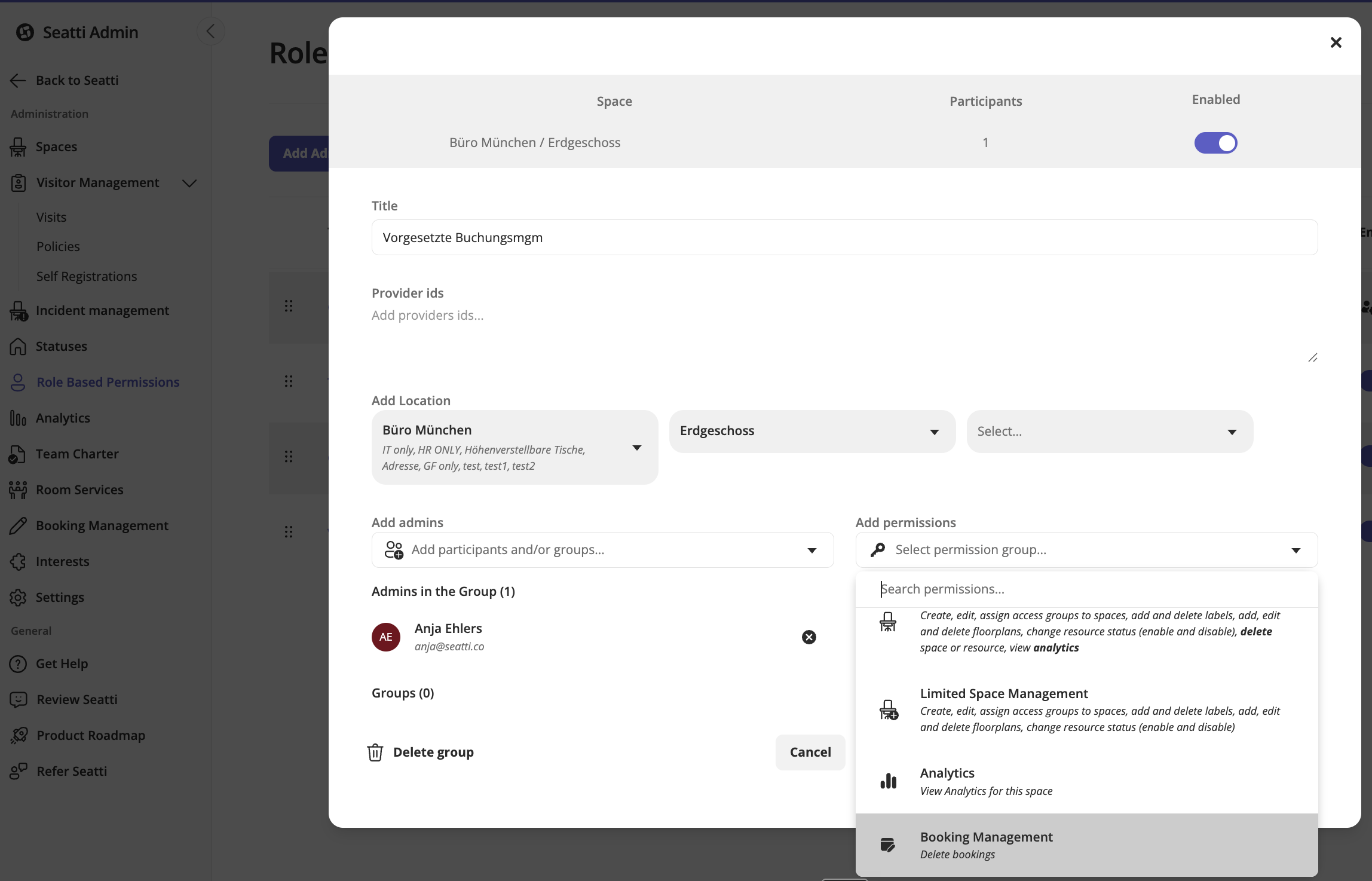
How can I view and delete bookings made by others?
Once you click on the "Booking Management" option in the admin menu, the corresponding menu opens.
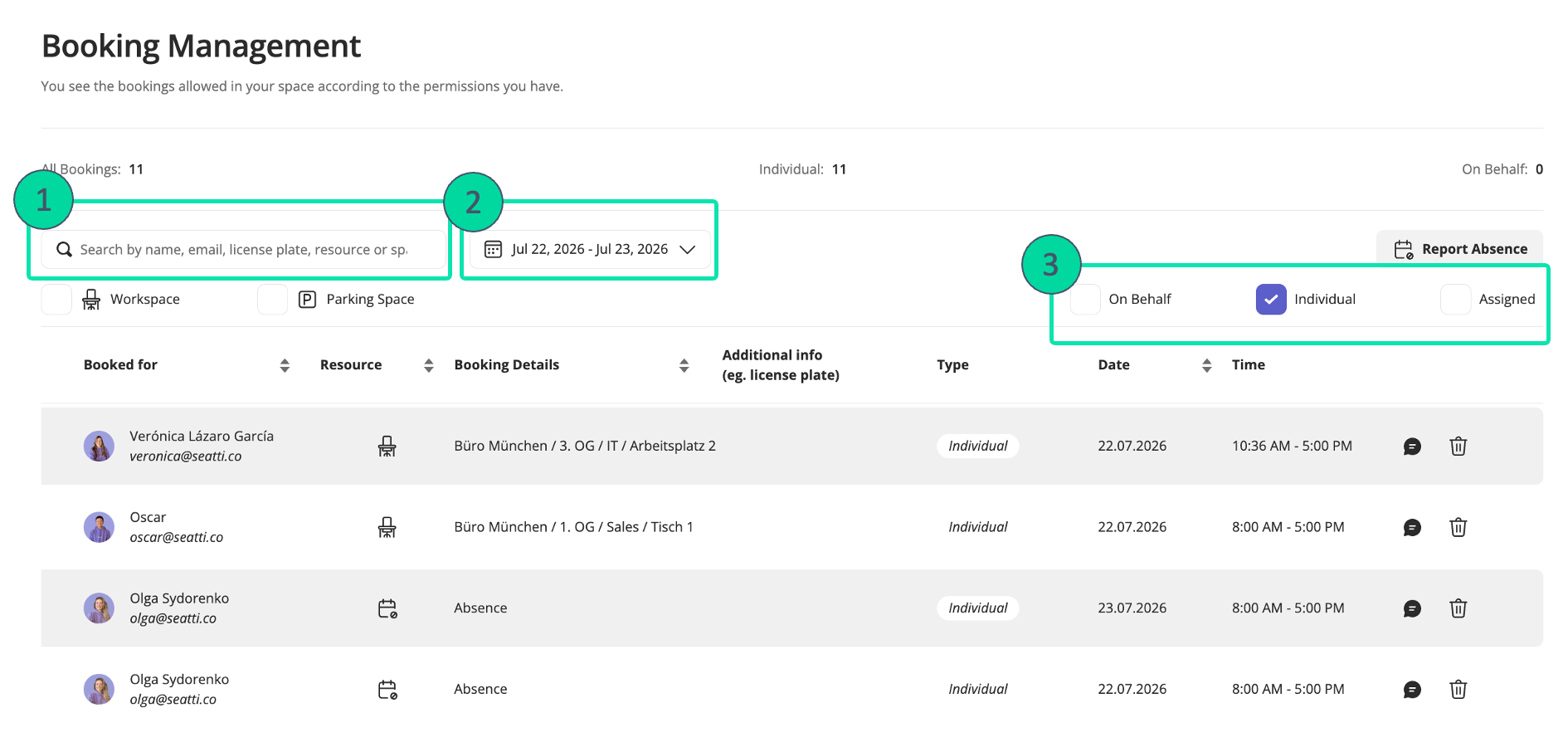
There, you will see all bookings listed within the automatically specified time period, which is today and tomorrow by default. Additionally, you have further filter options:
- Search by name: If you know whose bookings you want to delete, you can simply enter the name in the text field to filter the table automatically for that person's bookings.
- Timeframe: Here, you can choose the start and end dates of your desired timeframe to filter the bookings.
- Type of booking: For the type of booking, you can check the box based on whether you are looking for an individual's bookings or bookings made on behalf of someone else.
Deleting a booking
On the far right in the list of bookings, you will see the "Delete" icon, which you can click to remove the booking. If you're deleting a booking of someone who might actually be in the office, kindly use the bubble to open the Teams Chat and inform the affected person why you are kicking out their booking.
You can also release an assigned desk for single days to make it available for others to book.
Group bookings and meeting room bookings cannot be deleted by administrators, only by the respective organizer.