![Logo_BW-1.png]](https://customers.seatti.co/hs-fs/hubfs/Logo_BW-1.png?height=31&name=Logo_BW-1.png)
Seatti offers you the ability to create interactive floor plans.
Where? In the Admin Panel under 'Areas'
Who? Admins with permissions to edit areas
How? You can find the details in this article.
The floor plans will only appear as interactive to colleagues once you, as an admin, have made resource assignments on the plan!
In essence, you can still upload plans in .jpg or .png format as before and then mark the bookable resources (e.g., workspaces 1-10) created in the corresponding area (e.g., 2nd floor) on it.
You basically create a coordinate for a place on a layer above the plan.
This new level is interactive, the plan below is static.
Seatti knows through the coordinates stored by you as an admin in the system, which seat it is and can display according to the booking data, whether this seat is still available or already occupied.
Using this screenshot, we'll explain how to make your floor plans interactive:
First, go to the Admin Panel, then navigate to 'Areas.' Next, click on the pencil icon next to the respective area for which you want to edit the floor plan. Then, click on the pencil icon next to 'Floor Plan,' or upload a plan if there wasn't one before. You should then see a window that resembles the screenshot here.
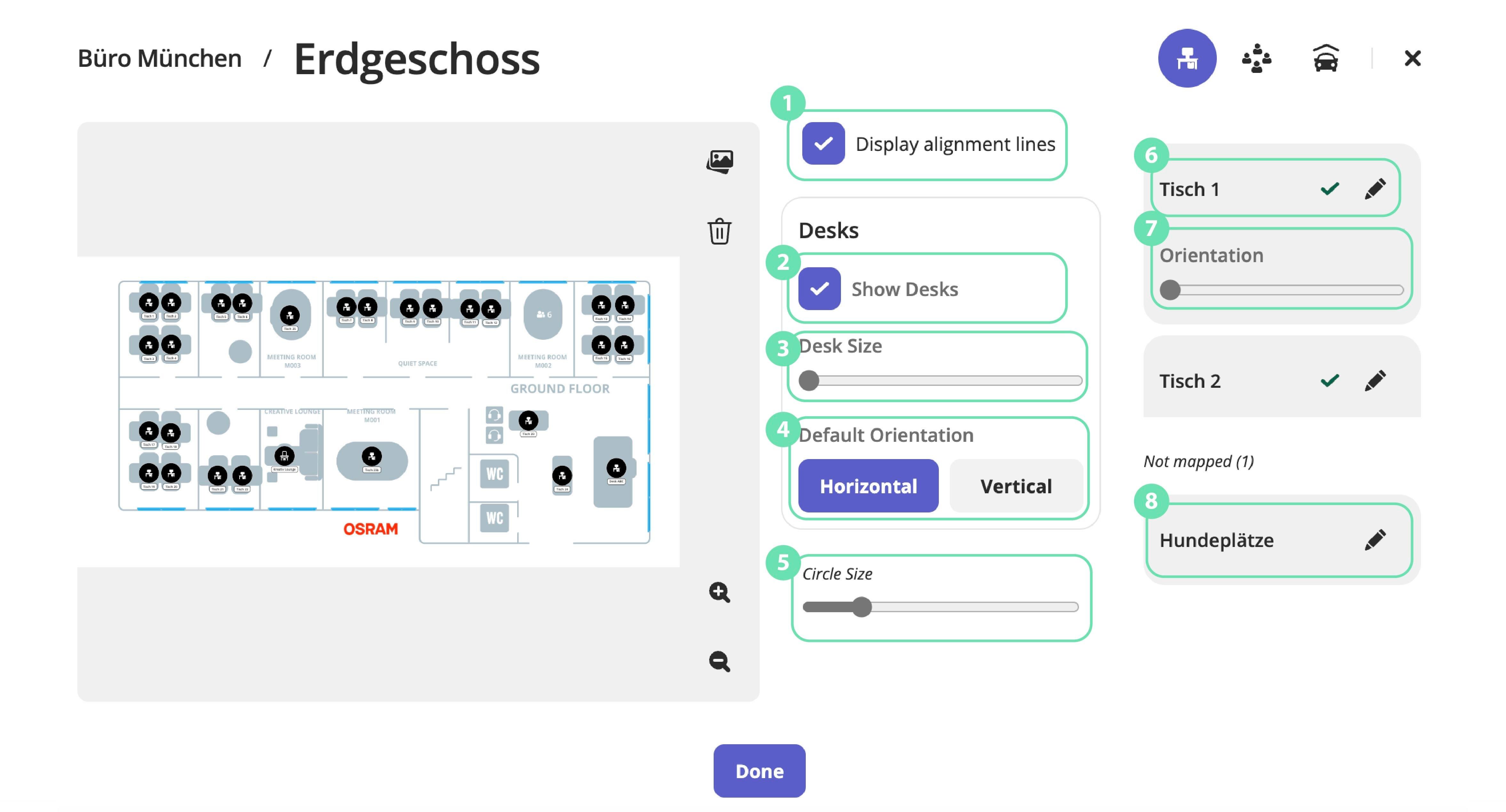
- Here you can display the alignment lines in order to place the individual resources centered on the plan.
- If you are uploading a plan that does not have any workstations already drawn in, you can use this function to add them to the display.
- You can use the slider to set the size of the workstations on the plan. It is best to first place a resource on the plan, adjust the scaling and when you are satisfied, you can distribute the remaining resources. A green tick indicates that the resource is already connected on the plan.
- You can use the standard alignment to set whether the workstations should be displayed horizontally or vertically. It is important to note that you must first select one of the two options before adding the resource. If you want to change the display afterwards, you must first delete the resource and add it again or set the orientation (see point 7).
- Here you can also use the slider to set the size of the circles on the map.
- Here you can see the resources that have already been added to the plan. This is also marked by the green tick.
- Here you can change the orientation of the respective resource.
- Here you can see the resources that have not yet been added to the plan.
Once you're done and have assigned all the resources, your colleagues can now see interactive plans. It's a good idea to inform them briefly about the change!
Interactive floor plans work for the following bookable resources:
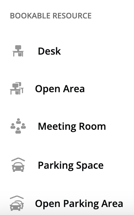
- Workspaces
- Shared Areas
- Meeting Rooms
- Parking Spots
- Parking Area Spots
Of course, there might be occasions when a few tables need to be rearranged or you want to swap the background plan.
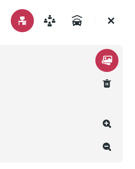
Both are not a problem!
You can simply open the plan using the pencil icon next to the respective area in the Admin Panel, and then click on the pencil icon next to 'Floor Plan' - in the new window, you'll find an icon with 2 images at the top right. Clicking on it allows you to upload a new floor plan that will replace the old one.
T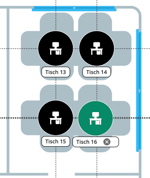 he resources will remain at the same coordinates as before (since they are in a separate layer above). So, you might want to rearrange or slightly move a few spots. To do this, simply click on a spot, it will turn green (=selected), and then drag the coordinate to the new position.
If you want to remove all connected resources from the coordinate layer, the easiest way is to delete the entire plan and upload it again. Alternatively, you would need to delete each resource individually.