![Logo_BW-1.png]](https://customers.seatti.co/hs-fs/hubfs/Logo_BW-1.png?height=31&name=Logo_BW-1.png)
No more searching for misplaced and possibly outdated versions of confidentiality agreements, no more complicated communication with reception, just standardized, automatically triggered processes and a consistent external image.
As an administrator or employee with the appropriate authorization (usually a receptionist), you can:
-
Define what information should be requested from external visitors
-
Determine whether a non-disclosure agreement (NDA) must be accepted in advance (and store the corresponding document for review)
-
View, filter, download, and edit a list of all registered visitors
-
View visitor data and adjust it if necessary
-
Check visitors in when they arrive and check them out again when they leave the building
-
Create a visitor badge with a single click
-
Inform the host automatically that their visitor is waiting at reception
You can access visitor management directly via the admin menu selection in the top right-hand corner.
(You will see this option if your company has activated this feature and you are either a company administrator or have the appropriate additional authorization to manage guests. You can read about how these rights can be assigned here.)
.png?width=528&height=271&name=Visitor%20mgm%20(1).png)
-
Display visitors for a specific period of time
(also in the past, for a maximum of 3 months for data protection reasons)
-
Define what information should be requested when sending an invitation:
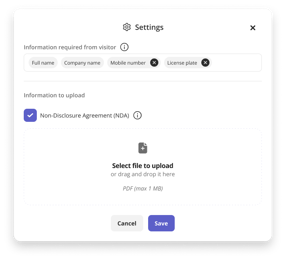 Name, visitor's company,
license plate number, if applicable, etc.
It is also possible to upload a confidentiality agreement (as a PDF, max. 1MB).
The visitor can then view this document
when they open the visitor form and accept the contents by checking the box.
3. You can customize the list view
a. by status using the preselection on the left side of the row
b. search by visitor name, company, host, etc.
c. filter by guests who have not checked in and those who are scheduled to depart
d. download as a CSV file
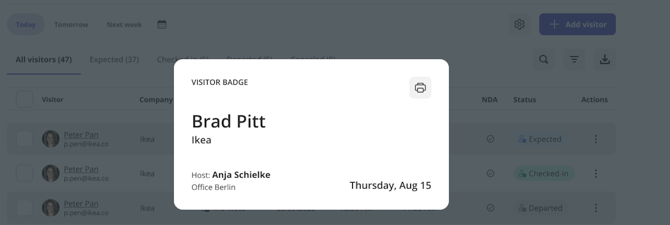
4. Clicking on the visitor's name opens the visitor badge, which can be downloaded directly for printing.
5. A symbol appears in the NDA list as soon as a visitor has clicked the checkbox to accept the confidentiality agreement in the registration form sent to them.
If an NDA has been uploaded, check-in cannot be completed until the confidentiality agreement has been accepted.
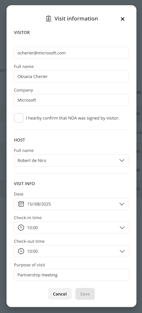
6. Using these three points, you can
a. check in a visitor and notify the host
b. check out a visitor upon departure
c. cancel a visit (if it has not yet been checked in, otherwise simply check out again)
d. adjust the visitor's details if necessary (e.g., change the time, correct the name, or accept the confidentiality agreement (if this is done on site)).
e. resend the registration email to the visitor
If the scheduled visit time has not been adhered to and the visitor has not yet checked in or out a yellow warning sign appears next to the time in the Check-in and Check-out columns. You can also filter by this.
You can also register a visitor directly on the spot and even check them in immediately using the purple “Add visitor” button (next to the 2).
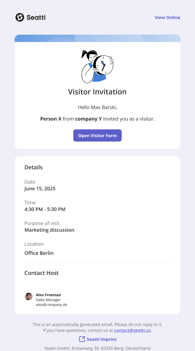
.png?width=182&height=303&name=5.2%20-%20Email%20(1).png) This is what the emails look like that are automatically sent to visitors and hosts with all the relevant information.
This is what the emails look like that are automatically sent to visitors and hosts with all the relevant information.
This article explains how every employee can invite external guests themselves.
5. Data Privacy & Retention
Seatti stores visitor data only for as long as it is needed for front desk operations. This keeps visitor management automatically GDPR-compliant and works council-ready — without you or your data protection officer having to clean things up manually.
Retention period: 3 months
All visitor data (name, contact details, required fields, NDA confirmation, check-in/check-out times) is automatically and irreversibly deleted 3 months after the visit date. This period is currently fixed system-wide and cannot be changed per location.
A configurable retention period (e.g. a shorter period for particularly sensitive locations) is already on our roadmap — we will update this article as soon as it becomes available.
Returning visitors
As long as a visitor is invited again within the 3-month window, their data will be pre-filled automatically — name, company, phone number, and any other required fields. This saves both you and your guest from having to fill in the form again.
Once the 3 months have passed, the data is deleted and the visitor will start with a blank form on their next visit.
NDA and other confirmations
An NDA confirmed by a visitor is valid for the full 3-month retention period — meaning we will not ask again for each individual visit, as long as the same document version applies.
As soon as you upload a new version of a document (e.g. a revised NDA or updated house rules), the visitor's confirmation becomes invalid. On their next visit, they will need to confirm the updated version before they can check in.
Archiving before deletion
If you need to retain visitor data beyond the 3-month period — for example for customs archives, security documentation, or internal audit requirements — use the CSV export function in the visitor list (see Section 1). Store the export in the internal system designated by your data protection policies.
Important: Once exported, the data leaves Seatti — from that point on, retention is the responsibility of your organisation.
What you can show your works council or data protection officer
- Purpose limitation: The data is used exclusively for front desk operations and, where applicable, security or compliance requirements.
- Retention period: 3 months, followed by automatic deletion with no residual data.
- Data minimisation: You control which fields are mandatory and which are optional via the Policies settings.
- Right of access and erasure: Upon request from individual visitors, you can manually remove their record before the retention period expires.