![Logo_BW-1.png]](https://customers.seatti.co/hs-fs/hubfs/Logo_BW-1.png?height=31&name=Logo_BW-1.png)
The color-code on the floorplan allows employees to quickly orient themselves and find the area relevant to them for booking their workspace.
It also allows you, as an admin, to streamline the structure. Instead of creating a new sub-area for each department, you can now display the desks of all departments within one floor on the same plan and simply distinguish them by color. (If you would like to change your structure, please contact support@seatti.co and we will be happy to help you move the desks up one level.)
As an administrator, you can open the room plan under “Spaces.” If the Zones-feature is activated for your company, you will see another tab with zones next to resources on the top right.
Click on this tab and add a zone. To do this, select a color and assign a name.
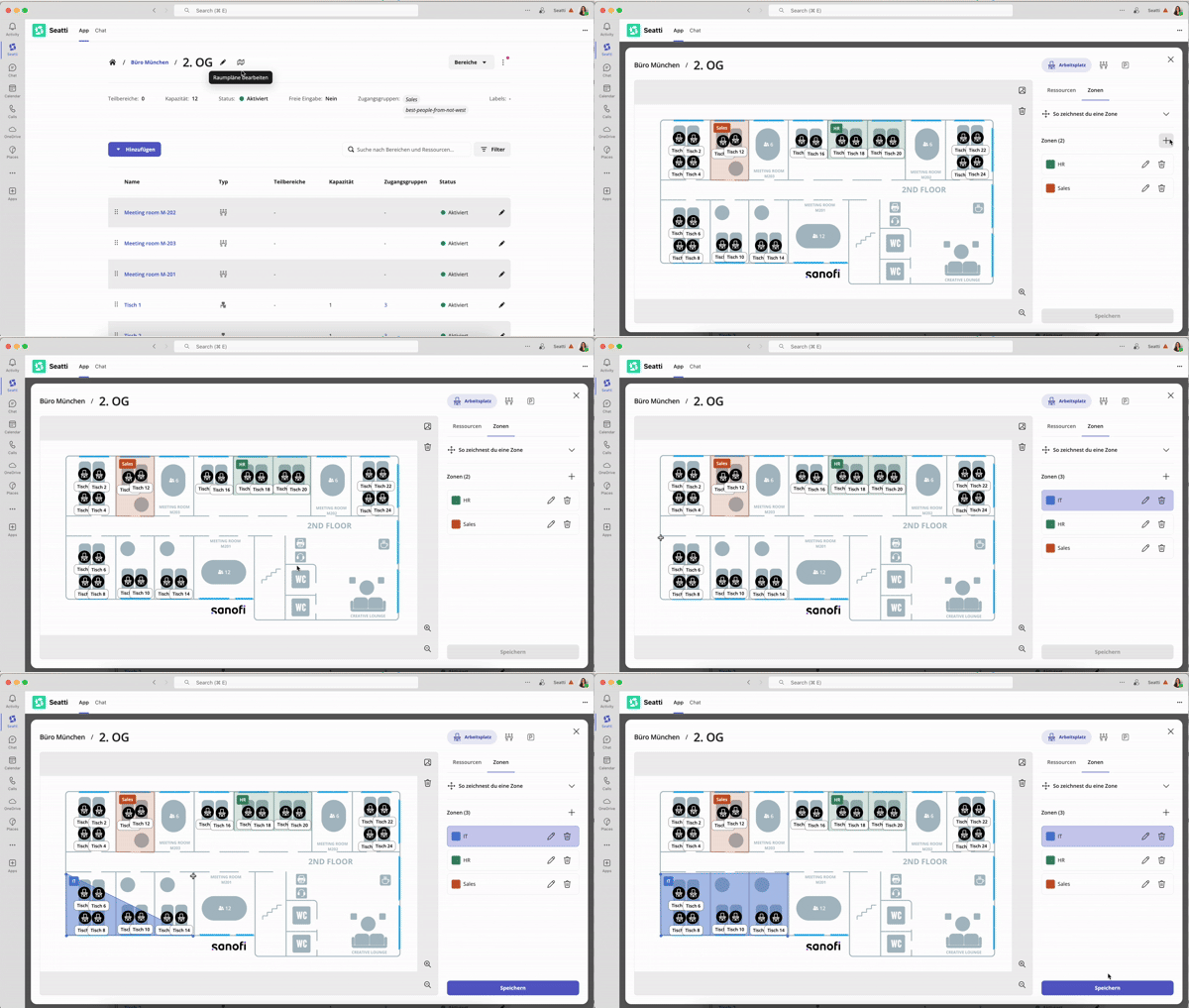
Then you can start drawing the zone on the plan: Once you have set 3 corner points, you will see an area. For a normal rectangular room, simply place a point in each corner.
You can then use the hand symbol with your cursor to make adjustments to the drawn shape.
You can also create multiple zones in the same color if the associated areas are not directly adjacent to each other.
Don't forget to click on “Save” at the bottom right when you're done!
If you haven't placed any desks on the interactive plan yet, you can do so now. Simply switch back to the Resources tab.
(Unfortunately, you can't see the zones in the Resources view yet, but we're working on making this possible soon. 😉)