![Logo_BW-1.png]](https://customers.seatti.co/hs-fs/hubfs/Logo_BW-1.png?height=31&name=Logo_BW-1.png)
To close this gap, Seatti offers the option of automatically registering employees as present based on IP addresses stored for the office.
If you have not yet configured another office in Seatti with automatic check-in, please first ensure that the technical requirements are met.
Then make sure that the Enterprise feature is enabled under Settings.
As a company administrator, you can then store the IP address(es) for each office.
To do this, activate the slider for Auto Check-in under Areas and enter both the IPv4 and IPv6 addresses in the specified format.
Formatting the IP address range
To cover an entire range of individual IP addresses, the format of the IP address must be adjusted.
For IPv4: use the first 3 blocks (up to and including the 3rd dot) and then add 0/24. 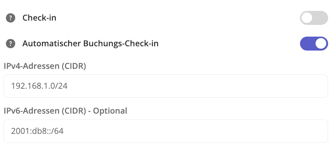
For IPv6: use the first 4 blocks (up to and including the 4th colon) and then append :/64.
Example:
IP address: 1a1b:2c2d:3e3f:4g4h:5i5j:6k6l:7m7n:8o8p
Input in Seatti: 1a1b:2c2d:3e3f:4g4h::/64
You can find your current IP address here, for example.
The IPv6 address field is optional, but if a user's login details only contain an IPv4 address and no IPv6 address, they will not be able to check in.
So you are on the safe side if you enter values for both fields.
If the technical requirements described below are met, employees are prompted once per day to log in with their Microsoft account. Seatti can then use the current IP address from these login details.
If the IP address recorded from that login data can be matched
with an office based on the stored IP address range,
the employee is automatically checked in at that office.
No desk booking is required for this. However, if the employee has a booking for a desk in this office, he or she will be automatically checked in at this desk and no longer needs to do so manually.
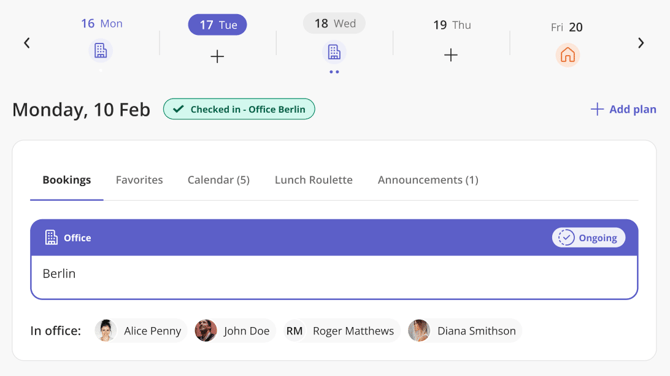
For employees who have not booked a desk but are in the office, a green check-in badge is displayed next to the date, along with a booking card showing the office name.
❗️Only employees who have logged in to Seatti at least once are checked in automatically. Seatti does not know other employees and cannot and should not retrieve any additional data for them.❗️
Employees can disable automatic office check-in in their personal settings. Opt-out users are excluded from IP-based check-in, even if they log in from a trusted IP address.
This option is provided for data protection reasons and is often a requirement on the part of the works council.
You can explore the options for evaluating this check-in data here.
Technical prerequesites:
For Seatti to access users’ IP addresses and match them with the stored address-range, two conditions must be met:
1.
You must set up a Conditional Access Policy that requires your employees to sign in with their Microsoft account at least once per day, ideally in one of the frequently used apps such as MS Teams or Outlook. Seatti then reads the IP addresses from the audit logs, i.e. the sign-in data on the Microsoft endpoint.
These sign-ins must be interactive logins for this to work!
2.
An additional permission is required to access these sign-in logs on the Microsoft endpoint that contain the users’ current IP addresses.
You can grant this permission by entering your tenant ID into the following link, opening it, and following the instructions.
This is best done by an IT employee with the appropriate permissions.
https://login.microsoftonline.com/{insert-your-tenant-id-here}/adminconsent?client_id=2e60fba4-c542-4e21-aa2c-ba13fc6d36ac&redirect_uri=https://my.seatti.co |
Note: when switching between home office and office:
If someone first logs in from their home office and later goes to the office, their presence in the office will only be recognized automatically for that day if they log in again from the office so that the office IP address appears in their sign-in logs.
Notes on using a VPN:
If your employees are required to use a VPN while working from home, you must ensure that IP addresses can be clearly assigned either to the office or to a non-offfice location.
If your VPN does not distinguish between office and private addresses, Seatti only receives the information “this IP address belongs to the office” and would therefore recognize employees as “present in the office” even when they are working from home.
If you have any further questions about this, feel free to contact support@seatti.co and we will be happy to help or speak directly with your IT team if further clarification is needed.